dotCMS: How to create an anchor link (jump) on a page
 Print
Print Email
EmailStep-by-step instructions on how to create an anchor link (jump link or page jump) to a specific section within a page on your website.
How to create an anchor link (jump) on a page
To create an anchor link (page jump) using the WYSIWYG Editor:
- Place your Cursor at the beginning of a line of text you wish to link to.
- Select the Anchor Link Icon from the toolbar.

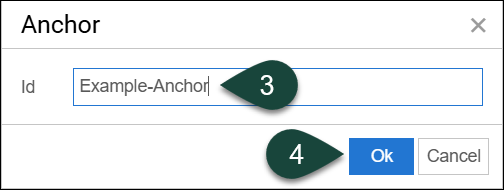
- Enter a Unique Id/Title for the anchor. (Note: Id should start with a letter, followed only by letters, numbers, dashes, dots, colons or underscores; no spaces.)
- Select Ok.
- Highlight the text you wish to link to the anchor.
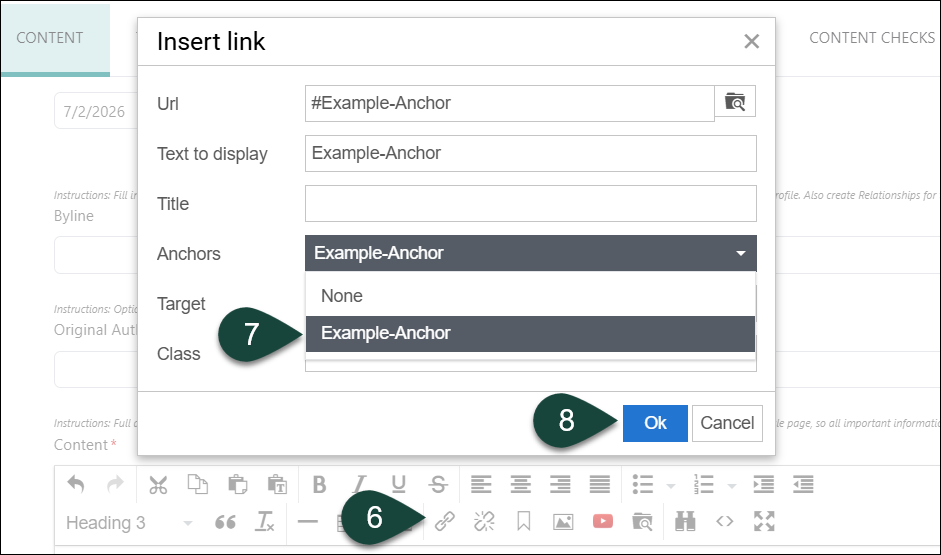
- Select the Link Icon in the toolbar.
- Select the Anchor Title from the Anchor drop-down menu.
- Select Ok.