Mapping a Network Drive (Mac)
 Print
Print Email
EmailInstructions for mapping a network drive to your Mac computer.
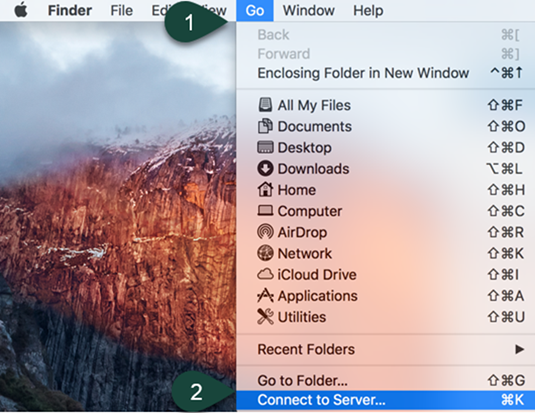
- From the Finder, select Go.
- Select Connect to Server.
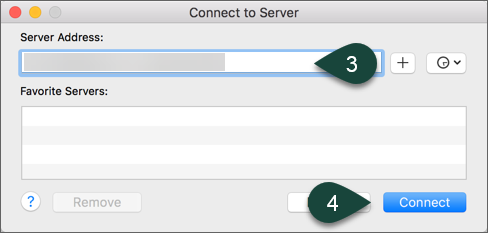
- In the Server Address field, enter the File Path Provided by your Department.
NOTE: You may need to map directly to the folder you wish to view, as you may not have permission to the parent folder. Check with your department to determine if you have the right file path. - Select Connect.
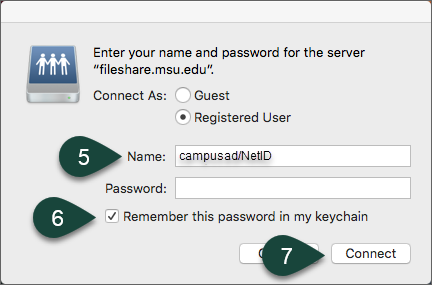
- Enter your MSU Username and Password.
NOTE: You need to enter CampusAD/NetID for the username field. - Select the checkbox for Remember this password in my keychain.
- Select Connect.