Configuring the Outlook App on Android Devices (Office 365)
 Print
Print Email
EmailInstructions on how to configure your MSU Office 365 email account on your Android devices including phones and tablets using the Outlook Mobile Application.
NOTE: As all Android devices are a bit different depending on the manufacturer, the images here may not exactly match your device.
- Install the Outlook Mobile Application from the Google Play Store.
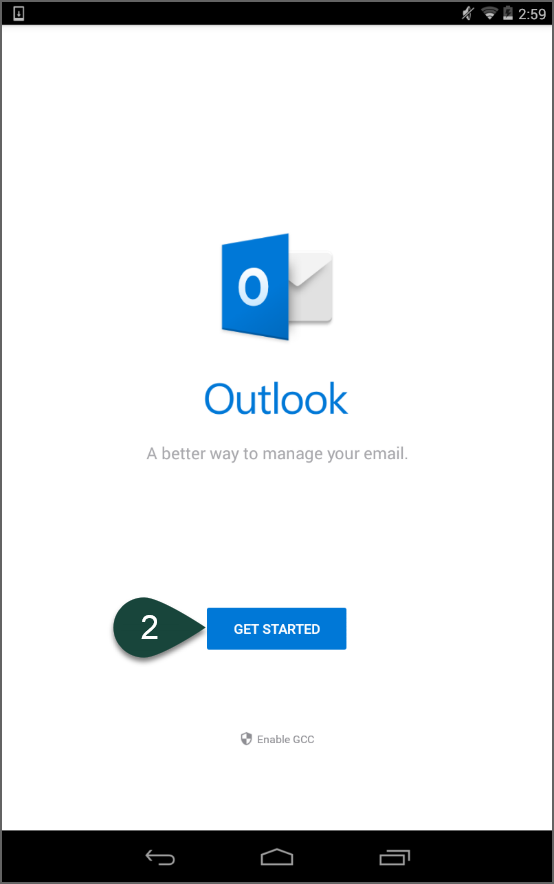
- Select Get Started.
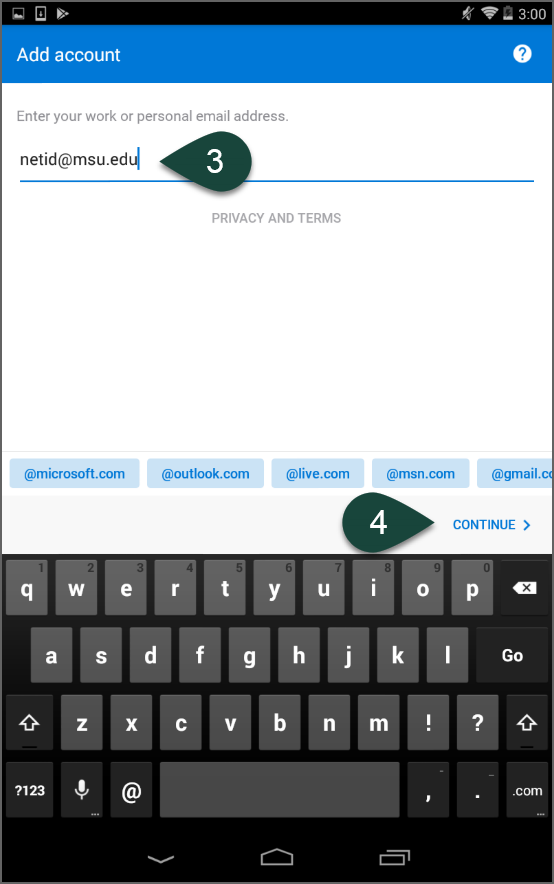
- Enter your MSU Email Address (NetID@msu.edu).
- Select Continue.
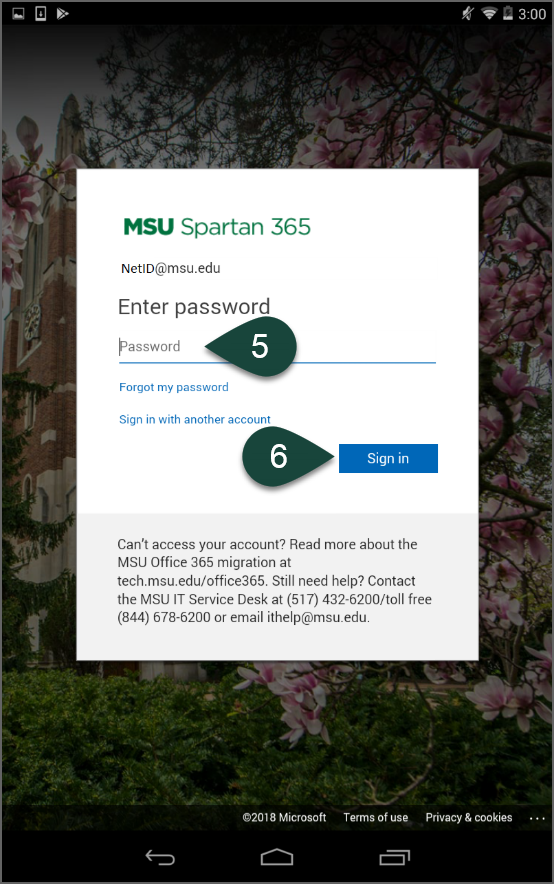
- Enter your MSU Password.
- Select Sign In.
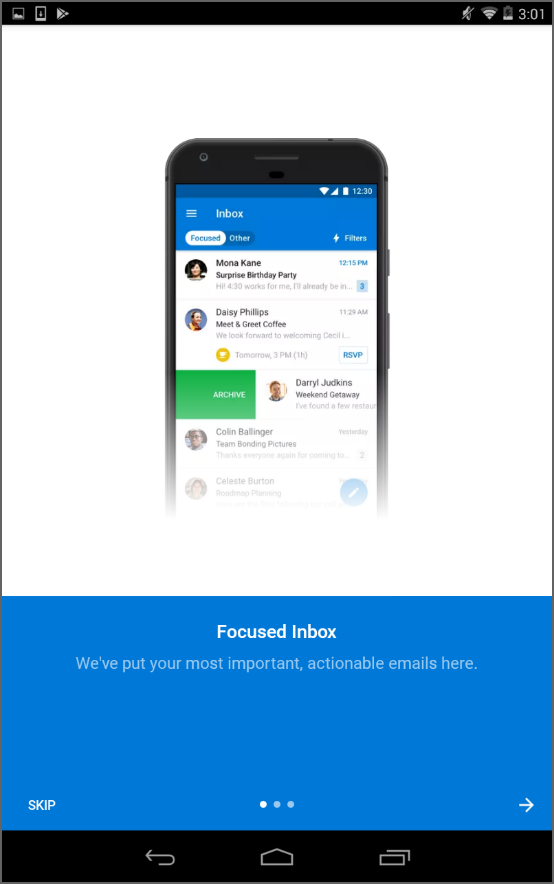
- Select Skip.
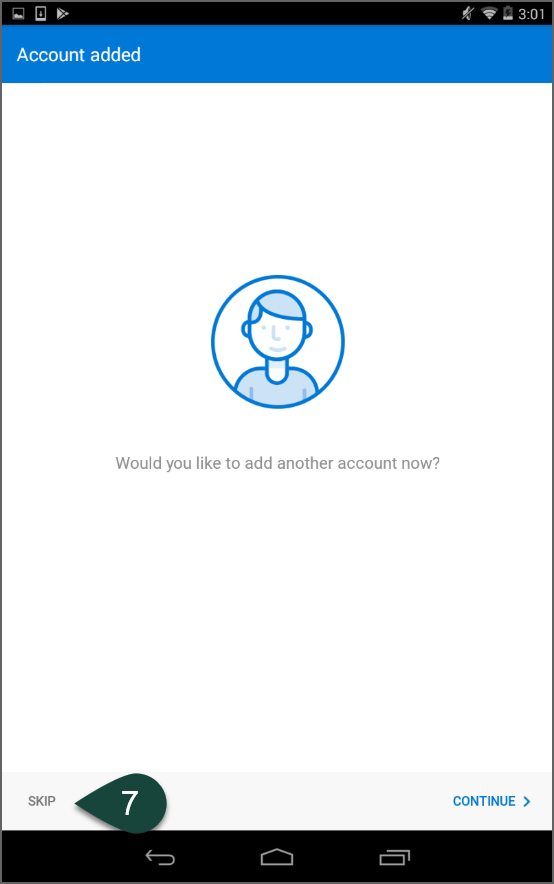
- Your account is set up. You can read through the information on the screens for more information on using the app or you can select Skip and go right to your email.